
slice-scenarios
v1.0.1Slice Scenarios Skill - Guide for writing Given-When-Then scenarios in slice details. Covers scenario structure, element references, YAML data patterns, and best practices for documenting behavior.
Slice Scenarios
Document process behavior with Given-When-Then scenarios in slice details on prooph board.
Overview
Slice Scenarios teaches AI agents how to write structured Given-When-Then scenarios in slice detail sections. Instead of describing behavior in free-form text, scenarios provide a clear, testable specification of what happens at each step in the Event Model.
Think of scenarios as lightweight specifications that sit alongside the visual model — they document the exact conditions, data, and expected outcomes for each process step.
Why Slice Scenarios
- Clarity — Given-When-Then format forces precise thinking about preconditions, actions, and outcomes
- Completeness — Scenario structure ensures no step is missing its context or expected result
- Shared language — Business stakeholders and developers can both read and validate scenarios
- Living documentation — Scenarios stay with the model on the board, not buried in external documents
When to Use
| ✅ Use Slice Scenarios | ❌ Skip It |
|---|---|
| Complex process steps with multiple conditions | Simple CRUD operations that are obvious from the model |
| Steps with important business rules | Early exploration phase where details are still unclear |
| Compliance or audit requirements | Steps that are self-explanatory |
Usage
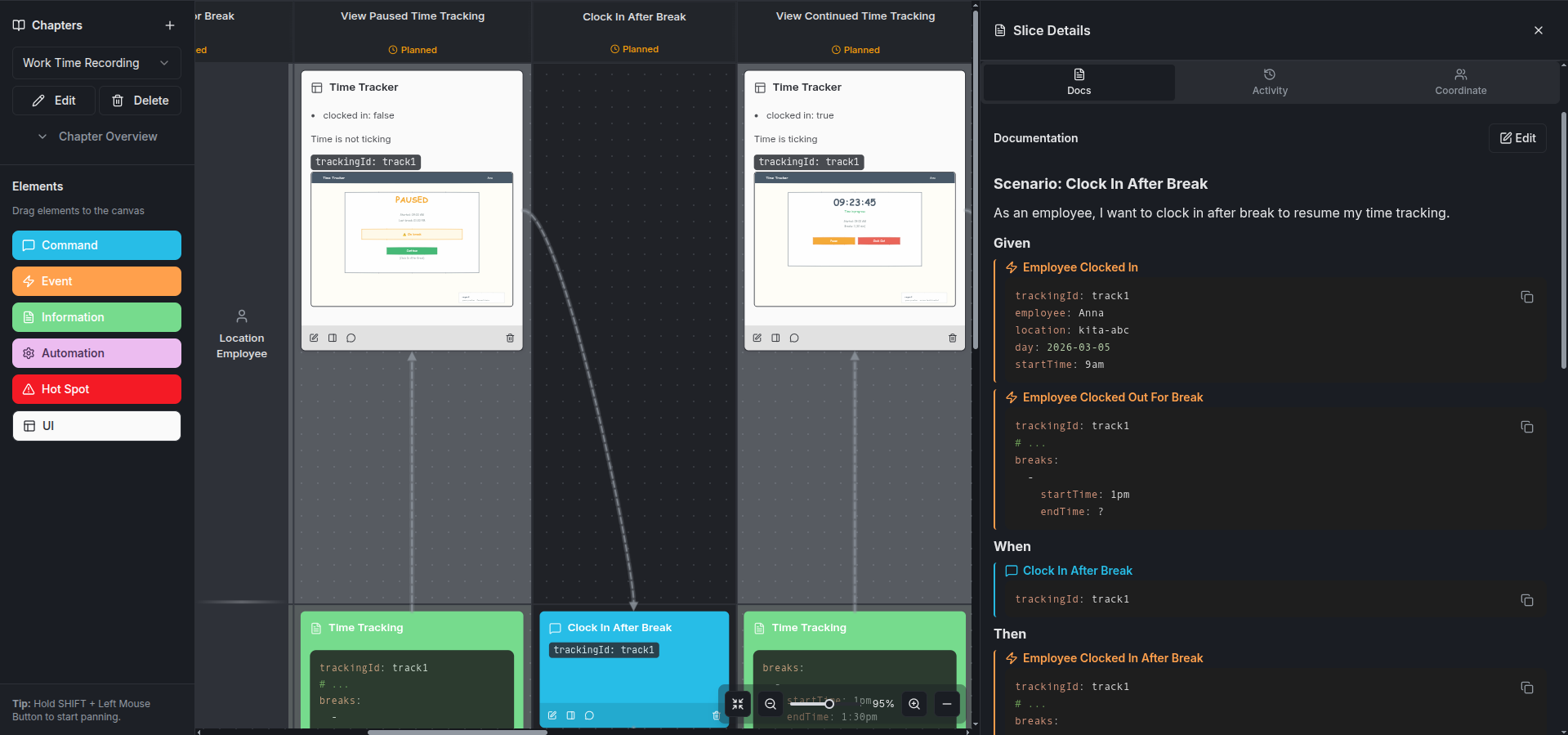
Once installed, your AI agent will know how to write Given-When-Then scenarios in slice details. Scenarios use YAML code blocks for structured data and reference element names for clarity:
Example
Best Practices
- Keep scenarios focused on one behavior per scenario
- Use concrete example data in
GivenandThenblocks - Reference elements by their exact names on the board
- Use
now()|time()andnow()|date()for dynamic values - Add multiple scenarios when a slice has important edge cases or error conditions
| name | slice-scenarios |
|---|---|
| description | Slice Scenarios Skill - Guide for writing Given-When-Then scenarios in slice details. Covers scenario structure, element references, YAML data patterns, and best practices for documenting behavior. Use this skill when tasked to add user stories or Given-When-Then (GWTs) scenarios to a chapter on prooph board. |
Slice Scenarios Skill - Writing Given-When-Then Scenarios for Slices
This document describes how to write effective slice scenario documentation in prooph board, based on analysis of real-world modeling examples.
Overview
Slice scenarios document the behavior and business rules for a specific step in the process. They use a Given-When-Then format to describe:
- What state exists before (Given)
- What action happens (When)
- What state/results after (Then)
Scenarios are written in the slice details and are visible to all users including non-technical business stakeholders.
Structure Template
Basic Scenario Structure
```markdown
### Scenario: [Scenario Title]

As a [role], I want to [action]
to [benefit].

#### Given

[Pre-condition state]

#### When

:::element [type]
[Element Name]

```yaml
[data payload]
```

:::

#### Then

:::element [type]
[Element Name]

```yaml
[result state]
```

:::
Element References in Scenarios
Use the :::element directive to reference elements in the slice:
Syntax
```markdown
:::element [elementType]
[Element Name]

```yaml
[data]
```

:::
Supported Element Types
| Type | Example |
|---|---|
command |
User/system action |
event |
Business fact |
information |
Data/state |
ui |
User interface |
hotspot |
Warning/error state |
automation |
Automated process |
Complete Examples from a Time Tracking Model
Example 1: Happy Path Scenario (Clock In)
```markdown
### Scenario: Start Work Day Time Tracking

As an employee, I want to clock in at the beginning of the work day
to start a new time tracking session.

#### Given

A new work day: `2026-03-05`

#### When

:::element command
Clock In

```yaml
employee: Anna
location: loc-abc
```

:::


#### Then

:::element event
Employee Clocked In

```yaml
trackingId: track1
employee: Anna
location: loc-abc
day: 2026-03-05
startTime: 9am
```

:::
Why it works:
- Clear user story format
- Simple given condition
- Shows command input and event output
- Uses concrete example data
Example 2: Error/Edge Case Scenario
```markdown
### Scenario: Time Tracking already started

As an employee, I cannot have more than one active time tracking sessions.

#### Given

:::element event
Employee Clocked In

```yaml
trackingId: track1
employee: Anna
location: loc-abc
day: 2026-03-05
startTime: 9am
```

:::

#### When

:::element command
Clock In

```yaml
employee: Anna
location: loc-abc
```

:::

#### Then

:::element hotspot
Time Tracking is already running

```yaml
employee: Anna
location: loc-abc
```

:::
Why it works:
- Documents business rule (no duplicate sessions)
- Shows error state with hotspot
- Same given/when as happy path, different then
Example 3: Access Control Scenario
```markdown
### Scenario: Cannot view other time tracking

As an employee, I'm not allowed to view other's time tracking

#### Given

`Employee: Anna`

:::element event
Employee Clocked In

```yaml
trackingId: track1
employee: Bob
location: loc-abc
day: 2026-03-05
startTime: 9am
```

:::

#### Then

:::element hotspot
Access Denied

```yaml
reason: You don't have permission to view this time tracking.
```

:::
Why it works:
- Documents security/authorization rule
- Uses inline variable declaration (
Employee: Anna) - Shows denied access with reason
Example 4: Multiple Given Events
```markdown
### Scenario: Clock In After Break

As an employee, I want to clock in again after my break
to continue tracking my work time.

#### Given

:::element event
Employee Clocked In

```yaml
trackingId: track1
employee: Anna
location: loc-abc
day: 2026-03-05
startTime: 9am
```

:::

:::element event
Employee Clocked Out For Break

```yaml
trackingId: track1
# ...
breaks:
  -
    startTime: 1pm
    endTime: ?
```

:::


#### When

:::element command
Clock In After Break


```
trackingId: track1
```

:::


#### Then

:::element event
Employee Clocked In After Break

```yaml
trackingId: track1
# ...
breaks:
  -
    startTime: 1pm
    endTime: 1:30pm
```

:::
Why it works:
- Shows accumulated state from multiple prior events
- Uses
# ...to indicate unchanged data - Uses
?to indicate future values - Demonstrates how GIVEN section can contain multiple events that build up the current state
Example 5: Idempotent Operation Scenario
```markdown
### Scenario: Already clocked out for break

#### Given

:::element event
Employee Clocked In

```yaml
trackingId: track1
employee: Anna
location: loc-abc
day: 2026-03-05
startTime: 9am
```

:::

:::element event
Employee Clocked Out For Break

```yaml
trackingId: track1
# ...
breaks:
  -
    startTime: 1pm
    endTime: ?
```

:::

#### When

:::element command
Clock Out For Break


```
trackingId: track1
```

:::


#### Then

silently ignore clock out for break
Why it works:
- Documents idempotent behavior
- Multiple given events show accumulated state
- Plain text then (no element) for simple behavior
Example 6: Failed Operation Scenario
```markdown
### Scenario: No active time tracking session

#### Given

:::element event
Employee Clocked In

```yaml
trackingId: track1
employee: Anna
location: loc-abc
day: 2026-03-05
startTime: 9am
```

:::

:::element event
Employee Clocked Out at Workday End

```yaml
trackingId: track1
endTime: 6pm
```

:::


#### When

:::element command
Clock Out For Break


```
trackingId: track1
```

:::

#### Then

:::element hotspot
Failed to clock out for break

```yaml
reason: no active time tracking session found
```

:::
Why it works:
- Shows invalid state transition
- Documents error message
- Explains why operation failed
Example 7: Complex State Scenario
```markdown
### Scenario: View active Time Tracking

As an employee, I want to view my active time tracking session.

#### Given

:::element event
Employee Clocked In

```yaml
trackingId: track1
employee: Anna
location: loc-abc
day: 2026-03-05
startTime: 9am
```

:::

:::element event
Employee Clocked Out For Break

```yaml
trackingId: track1
# ...
breaks:
  -
    startTime: 1pm
    endTime: ?
```

:::


#### Then

:::element information
Time Tracking

```yaml
trackingId: track1
employee: Anna
location: loc-abc
day: 2026-03-05
startTime: 9am
breaks:
  -
    startTime: 1pm
    endTime: ?
```

:::
Why it works:
- Shows accumulated state from multiple events
- Documents what information is available
- Shows projected/read model state
YAML Data Patterns
Pattern 1: Complete State Snapshot
trackingId: track1
employee: Anna
location: loc-abc
day: 2026-03-05
startTime: 9am
Use when: Documenting full entity state
Pattern 2: Partial State with Ellipsis
trackingId: track1
# ...
breaks:
  -
    startTime: 1pm
    endTime: ?
Use when: Only showing changed fields, # ... indicates unchanged data
Pattern 3: Dynamic Values
day: now()|date()
startTime: now()|time()
endTime: now()|time()
Use when: Values are computed at runtime
Pattern 4: Optional Fields
endTime: ?
Use when: Field may or may not exist
Pattern 5: Error/Reason Payload
reason: no active time tracking session found
reason: You don't have permission to view this time tracking.
Use when: Documenting error details
Pattern 6: Inline Variable Declaration
```markdown
`Employee: Anna`
`Date: 2026-03-05`
Use when: Setting context variables for scenario
Pattern 7: ASCII Mock: Add visual context in Given-When-Then scenarios if illustrating the user journey adds value.
```markdown
#### Then

:::element ui
Time Tracking Dashboard

## ASCII Mockup

```bash
┌─────────────────────────────────────┐
│  Time Tracking Dashboard            │
├─────────────────────────────────────┤
│  Anna M. | loc-abc | 2026-03-05    │
│  Status: In Progress                │
│  Started: 9:00 AM                   │
├─────────────────────────────────────┤
│  [ Pause ]       [ Clock Out ]      │
└─────────────────────────────────────┘
```

:::
Use when: Illustrating how the UI state changes as part of the scenario
Pattern 8: Markdown Tables for List/Database State Changes
Use markdown tables to illustrate how list views or database tables change through a scenario:
```markdown
#### Given

| taskId | assignee | status     | dueDate    |
|--------|----------|------------|------------|
| T-001  | Anna     | in_progress| 2026-03-10 |
| T-002  | Bob      | open       | 2026-03-12 |

#### When

:::element command
Complete Task

```yaml
taskId: T-001
```

:::

#### Then

| taskId | assignee | status     | dueDate    |
|--------|----------|------------|------------|
| T-001  | Anna     | completed  | 2026-03-10 |
| T-002  | Bob      | open       | 2026-03-12 |
Use when: Documenting how a collection or table changes through a scenario
Scenario Types
1. Happy Path
The normal, expected flow:
```markdown
### Scenario: Start Work Day Time Tracking

As an employee, I want to clock in at the beginning of the work day
to start a new time tracking session.

#### Given
A new work day: `2026-03-05`

#### When
[Command]

#### Then
[Success Event]
2. Business Rule Validation
Enforcing domain constraints:
```markdown
### Scenario: Time Tracking already started

As an employee, I cannot have more than one active time tracking sessions.

#### Given
[Active session exists]

#### When
[Duplicate clock in attempt]

#### Then
[Hotspot - already running]
3. Authorization/Access Control
Permission checks:
```markdown
### Scenario: Cannot view other time tracking

As an employee, I'm not allowed to view other's time tracking

#### Given
`Employee: Anna`
[Bob's time tracking event]

#### Then
[Hotspot - Access Denied]
4. Error Handling
Invalid operations:
```markdown
### Scenario: No active time tracking session

#### Given
[Session already ended]

#### When
[Clock out for break attempt]

#### Then
[Hotspot - Failed with reason]
5. Idempotent Operations
Safe retry behavior:
```markdown
### Scenario: Already clocked out for break

#### Given
[Already on break]

#### When
[Clock out for break again]

#### Then
silently ignore clock out for break
6. State Projection
Read model behavior:
```markdown
### Scenario: View active Time Tracking

As an employee, I want to view my active time tracking session.

#### Given
[Multiple events showing state]

#### Then
[Information element with projected state]
Best Practices
1. Use User Story Format
```markdown
✅ Good:
As an employee, I want to clock in at the beginning of the work day
to start a new time tracking session.

❌ Avoid:
User clicks clock in button to start tracking.
2. Keep Scenarios Atomic
Each scenario should test ONE behavior:
```markdown
✅ Good:
### Scenario: Clock Out For Break
### Scenario: Already clocked out for break
### Scenario: No active time tracking session

❌ Avoid:
### Scenario: Clock Out For Break with all edge cases and errors
3. Use Concrete Example Data
```markdown
✅ Good:
```yaml
employee: Anna
location: loc-abc
trackingId: track1
```

❌ Avoid:
```yaml
employeeId: string|format:uuid
locationId: string|format:uuid
```
4. Show State Transitions Clearly
```markdown
✅ Good:
#### Given
[Initial state]

#### When
[Action]

#### Then
[Resulting state]

❌ Avoid:
Mixing given/when/then or skipping sections
5. Use Hotspots for Errors
```markdown
✅ Good:
#### Then

:::element hotspot
Access Denied

```yaml
reason: You don't have permission
```

:::

❌ Avoid:
#### Then

Event: Access Denied (but it's not really an event)
6. Document Both Success and Failure
For each command, consider:
```markdown
✅ Complete:
- Scenario: Successful operation
- Scenario: Invalid state (can't do this now)
- Scenario: Already done (idempotent)
- Scenario: Permission denied
- Scenario: Missing data
7. Use Comments for Unchanged Data
```markdown
✅ Good:
```yaml
trackingId: track1
# ...
breaks:
  - startTime: 1pm
```

❌ Avoid:
Repeating all fields when only some changed
8. Use Visual Aids for UI and Data Changes (ask first!)
When illustrating how UI state changes or how lists/tables are affected by a scenario, consider adding visual aids — but always ask the user first:
```markdown
✅ Good (ASCII mockup for UI state change, if user wants it):
#### Then

:::element ui
Time Tracking Dashboard

```bash
┌──────────────────────────┐
│  Status: In Progress     │
│  Started: 9:00 AM        │
└──────────────────────────┘
```

:::

✅ Good (markdown table for list/database changes):
#### Given
| taskId | status |
|--------|--------|
| T-001  | open   |

#### Then
| taskId | status    |
|--------|-----------|
| T-001  | completed |

❌ Avoid:
Adding ASCII mockups without asking — user may prefer screenshots or wireframes
Checklist for Writing Slice Scenarios
- Does the scenario have a clear title?
- Is the user story format used (As a... I want to... to...)?
- Are all three sections present (Given/When/Then)?
- Are element references using
:::elementsyntax? - Is YAML data using concrete examples (not types)?
- Are error states documented with hotspots?
- Are both happy path and edge cases covered?
- Is the scenario atomic (tests one behavior)?
- Would a non-technical stakeholder understand this?
- Does it match the elements actually in the slice?
- For UI or list scenarios: did you consider usage of ASCII mockup, markdown table, or screenshot?
Common Mistakes
❌ Mistake 1: Missing User Story
```markdown
❌ Bad:
### Scenario: Clock In

#### Given
...

✅ Better:
### Scenario: Start Work Day Time Tracking

As an employee, I want to clock in at the beginning of the work day
to start a new time tracking session.

#### Given
...
❌ Mistake 2: Using Technical Schema
```markdown
❌ Bad:
```yaml
employeeId: string|format:uuid
locationId: string|format:uuid
day: string|format:date
```

✅ Better:
```yaml
employee: Anna
location: loc-abc
day: 2026-03-05
```
❌ Mistake 3: Incomplete Element Reference
```markdown
❌ Bad:
Clock In command with employee data

✅ Better:
:::element command
Clock In

```yaml
employee: Anna
location: loc-abc
```

:::
❌ Mistake 4: Mixing Multiple Behaviors
```markdown
❌ Bad:
### Scenario: Clock In and Clock Out and Handle Errors

✅ Better:
### Scenario: Start Work Day Time Tracking
### Scenario: Clock Out For Break
### Scenario: Time Tracking already started
❌ Mistake 5: No Error Scenarios
```markdown
❌ Bad:
Only happy path documented

✅ Better:
- Happy path
- Already done (idempotent)
- Invalid state
- Permission denied
- Missing data
Scenario Organization in Slice Details
Multiple scenarios in one slice:
```markdown
### Scenario: Clock Out For Break

As an employee, I want to clock out for break during the day
to pause my time tracking.

#### Given
...

#### When
...

#### Then
...


### Scenario: Already clocked out for break

#### Given
...

#### When
...

#### Then
...


### Scenario: No active time tracking session

#### Given
...

#### When
...

#### Then
...
Relationship to Other Documentation
| Documentation | Scope | Purpose |
|---|---|---|
| Slice Scenarios | Local to slice | Document behavior for this process step |
| Element Description | Local to element instance | Document what this element does in this context |
| Element Details | Global (all similar elements) | Technical specification (schema, rules, etc.) |
Best Practice: Use slice scenarios to document how elements interact in this specific process step. Keep technical details in element details.
Summary
Slice scenarios are a powerful tool for documenting business behavior in a format that:
- ✅ Is understandable by business stakeholders
- ✅ Uses Given-When-Then format for clarity
- ✅ References elements with
:::elementsyntax - ✅ Shows concrete example data in YAML
- ✅ Documents both success and failure paths
- ✅ Captures business rules and constraints
- ✅ Complements element descriptions and details
Remember: Scenarios live in slice details and describe what happens in THIS specific process step with THESE specific elements.